Create Image Sitemaps for Google
Introduction to Image Sitemaps
Does your website contain lots of images, possibly even lots of unique images? If so, it makes good sense to create an image sitemap for search engines like Google, so you more quickly can get all the images indexed and found in image related searches. This tutorial will show you how to create image sitemaps in a few simple steps using this sitemap generator tool.
As the Google image sitemap format is an extension of the standard XML sitemaps format, you can check the XML sitemap tutorials for information about how to ping and FTP upload generated image sitemaps.
Find All Images in Your Website
First make sure you configure the sitemap generator tool to collect all images during the initial website crawl:

Having done that, simply initiate the website crawl.
Create The Image Sitemap
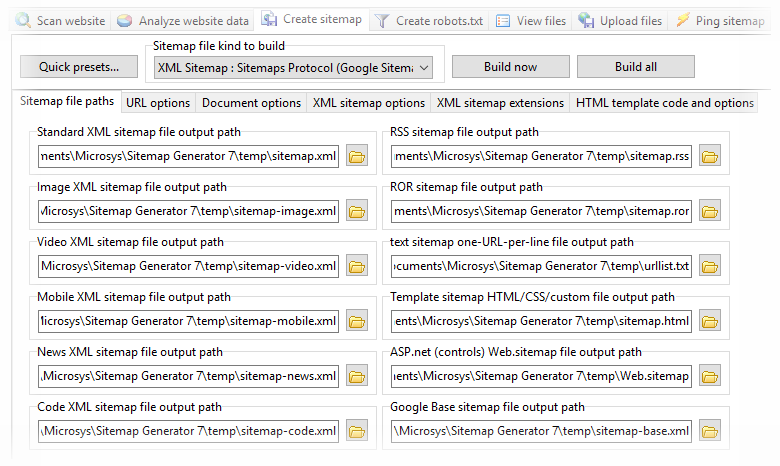
Make sure you select the correct sitemap file kind to create, here image sitemap:

How an Image Sitemap Looks Like
Here is a simplified example showing how a simple image sitemap looks like:
<?xml version="1.0" encoding="UTF-8"?>
<urlset xmlns="http://www.sitemaps.org/schemas/sitemap/0.9" xmlns:image="http://www.google.com/schemas/sitemap-image/1.1">
<url>
<loc>http://www.example.com/</loc>
<image:image>
<image:loc>http://www.example.com/one.png</image:loc>
<image:title>image one title</image:title>
<image:caption>image one caption</image:caption>
</image:image>
</url>
</urlset>
Verify The Image Sitemap
As Google Webmaster Tools reports the number of page URLs in all XML sitemap file kinds including image sitemaps (even those with no images associated) it can sometimes be difficult to verify the actual number of images submitted if you experiment with different sitemap generator tools. Here is a couple of things you can do:
- Make sure the image sitemap generated only contains page URLs <loc></loc> with associated images <image:loc></image:loc>.
- Try perform a search/replace of <image:loc> in the generated XML image sitemap file. Most text editors gives you a count of found/replaced text items.
Comments
Comment from jony
Time: December 1, 2011, 3:01 am
please help me.,
code in the code below put where? I do not understand,., thanks for the help,.,
http://www.example.com/one.png
image one title
image one caption
Comment from admin
Time: December 3, 2011, 6:05 am
Hi Jony,
The idea is that you let A1 Sitemap Generator crawl your website and create the image sitemap for you with the correct URLs. That way the image sitemap is already made and ready to be submitted in Google Webmaster Tools.
Comment from photodude
Time: January 15, 2012, 7:07 pm
Too bad I can’t generate / add image links with this program to my existing sitemap files – that would be a nice feature to add in future versions. I would consider buying if it had that feature. I can figure out how to import urllist.txt but from there it gives me an error message when I try to create an image sitemap.
Comment from admin
Time: January 16, 2012, 6:19 am
Importing URLs for image sitemaps is really impossible since image URLs need to be associated to page URLs in image sitemaps. That is information A1 Sitemap Generator collects during scan. (It uses the internal link/use structure among other things to associate pages with relevant images.)


Comment from Removal Companies
Time: July 13, 2011, 9:41 pm
Very useful and easy to understandable article thanks for sharing. I will look forward to your more posts.